Here is the tutorial for the new GDRA pool software, 2025!
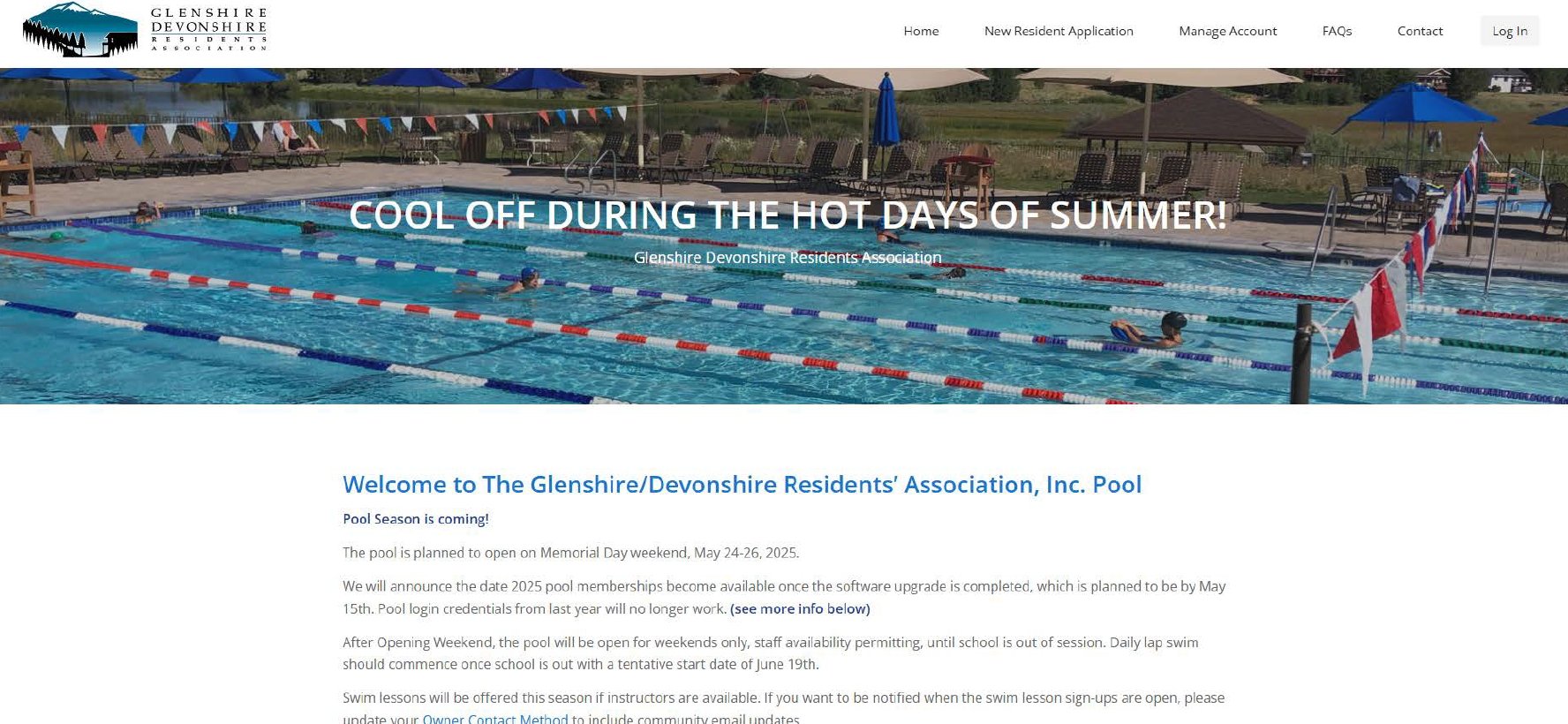
Welcome to the Home Page for the GDRA new pool software! Find the Log In button to start setting up your account.
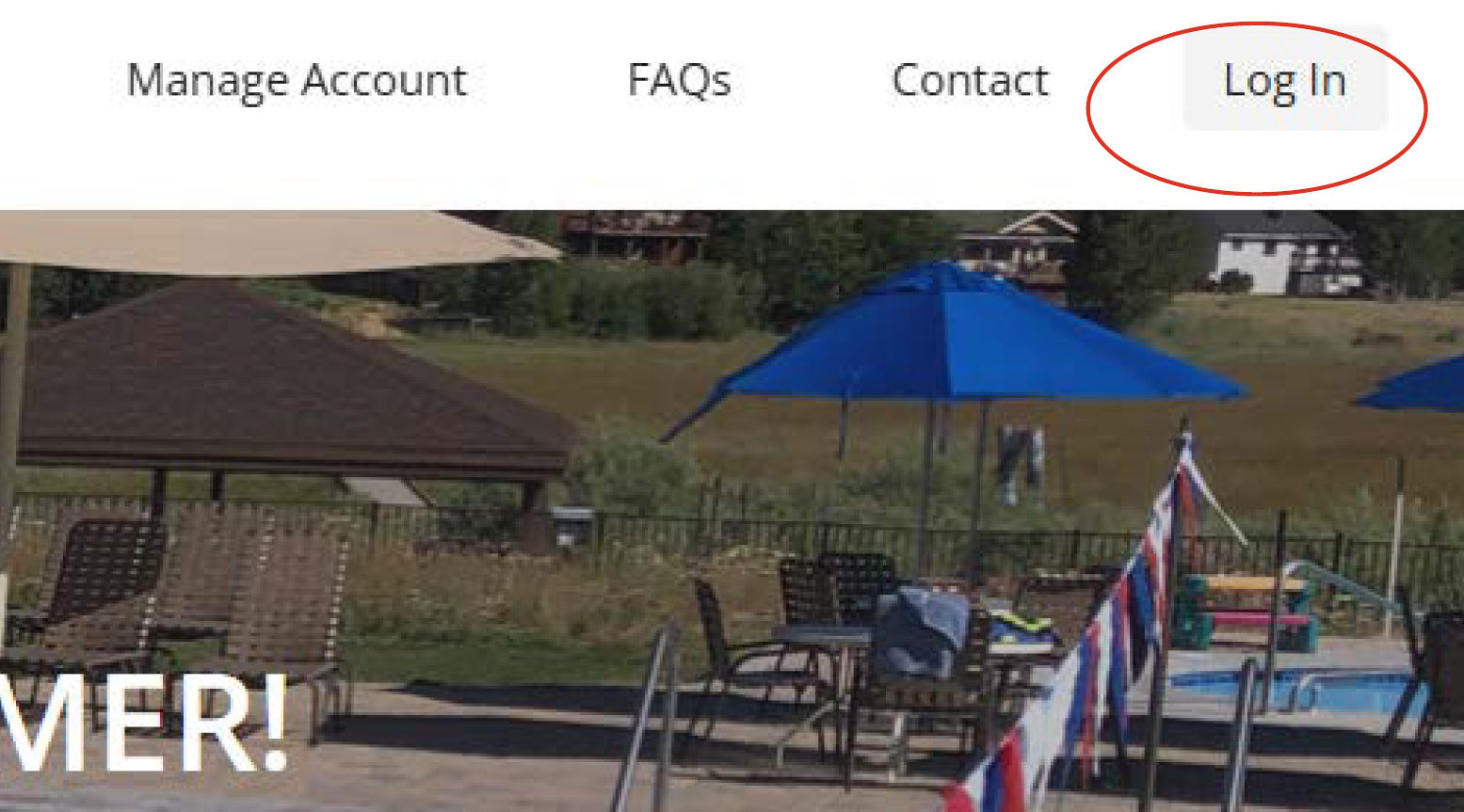
Now that you are in the Log In screen, find the button that says “Click Here” at the bottom of the Member Log In page.
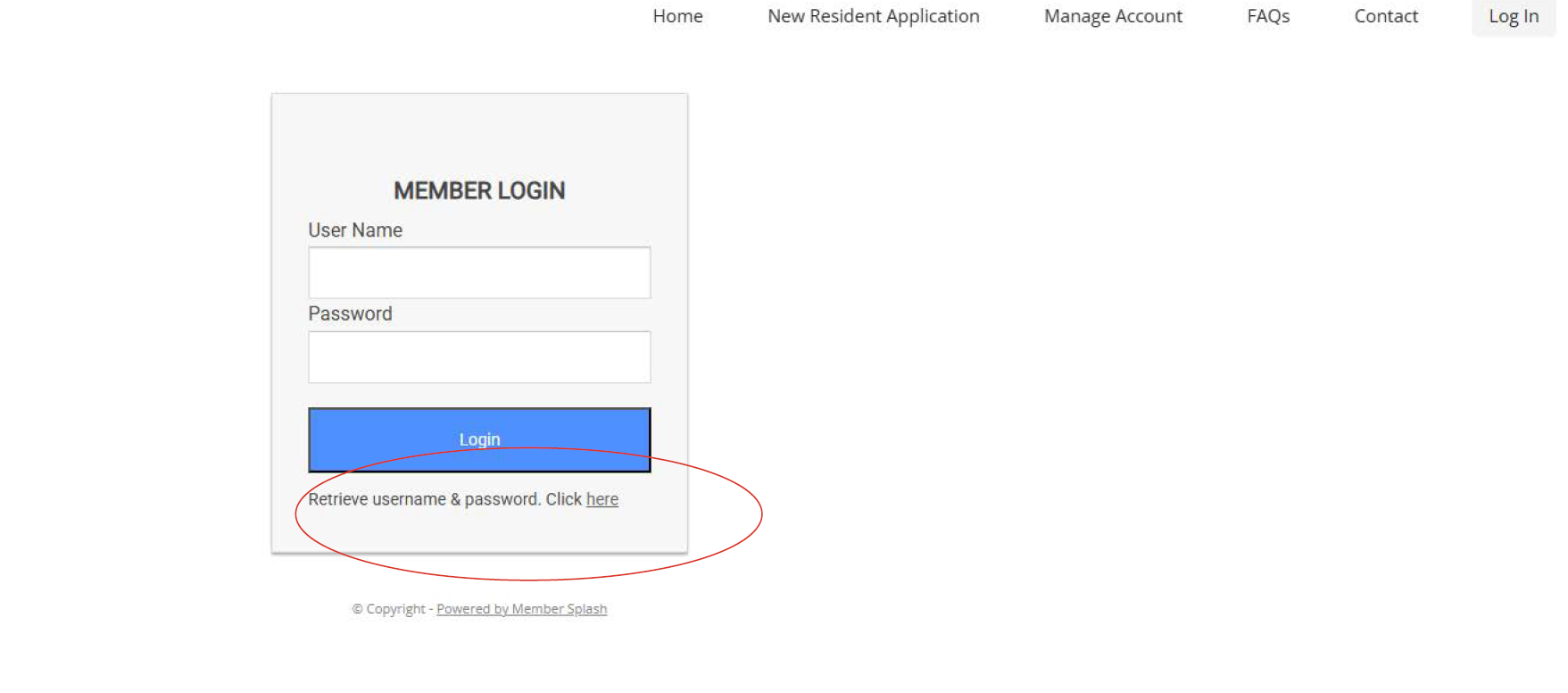
Once you find the “Click Here” button, fill in the email address that you have set up with your property at GDRA. If you have multiple addresses, please note that only one email address will be the username, so try a few email addresses if one doesn’t work.
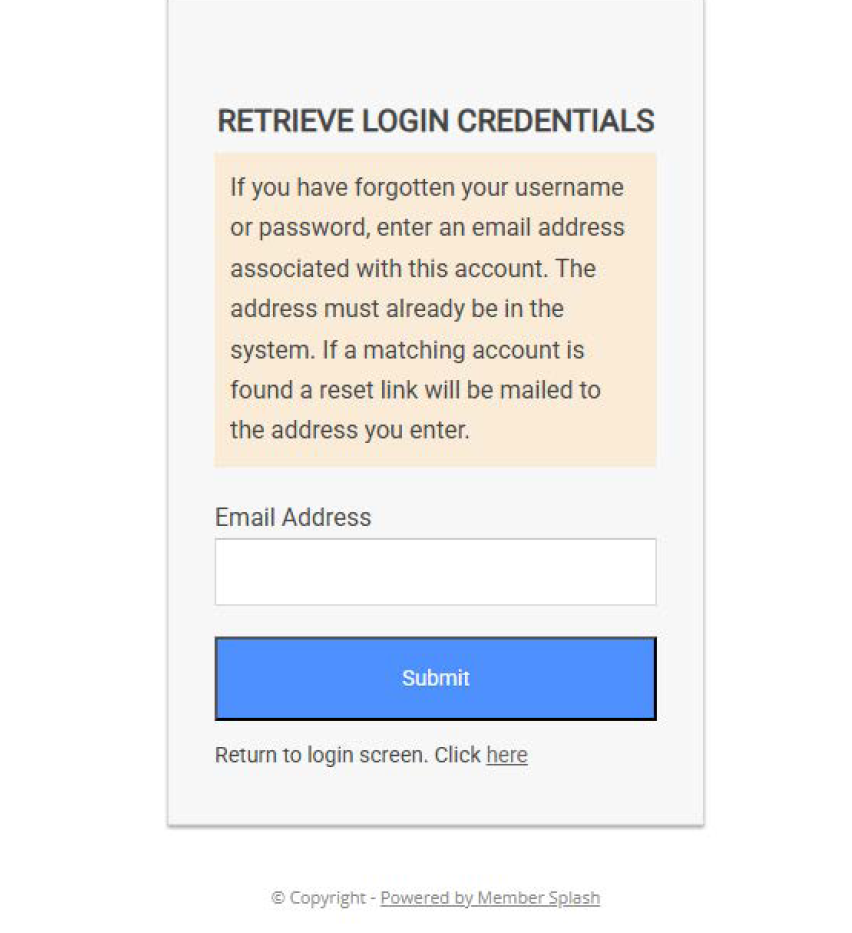
Once you submit your email address, the software will send a link to your email address to reset your password. Follow that link and set up a secure password for your account. then come back to the Member Log In page to continue logging in. Once you have logged in, the screen should look like this.
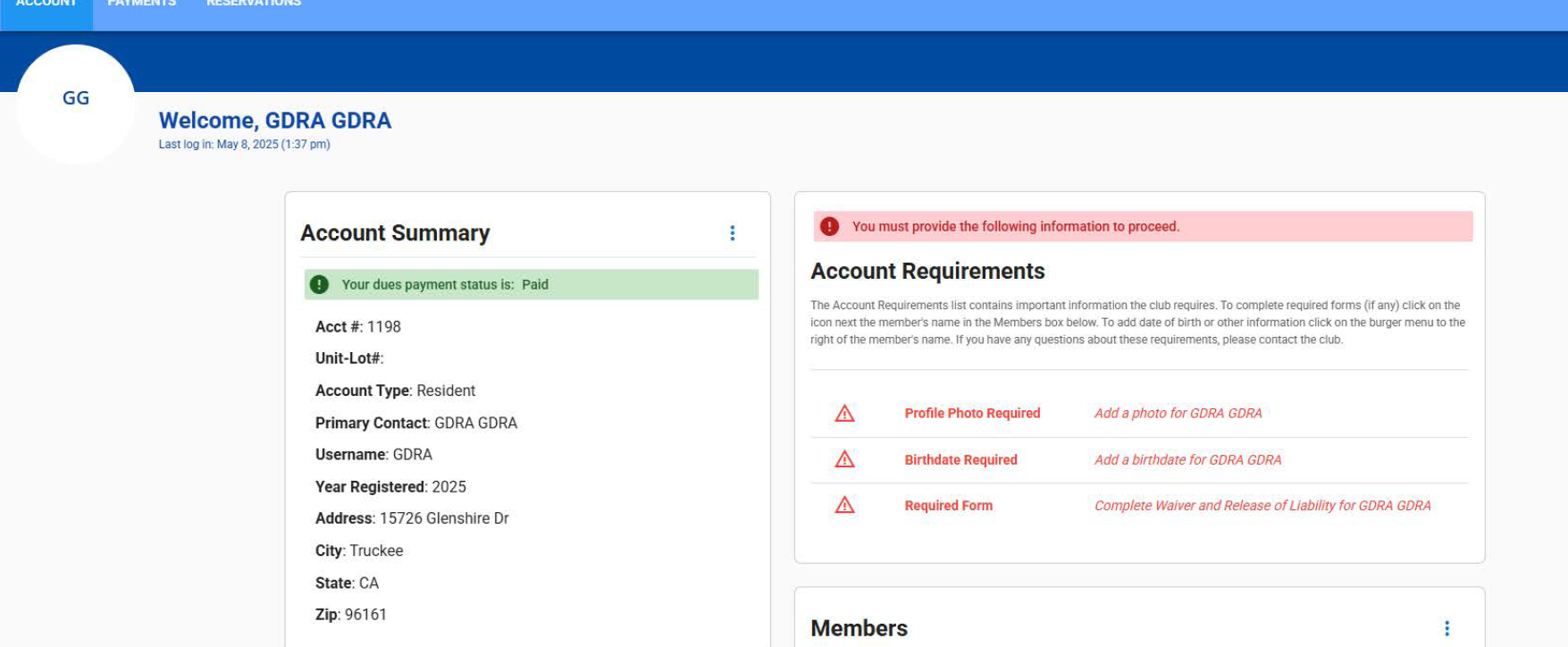
The red Account Requirements are all the details that must be filled in for each household member before you can purchase a pool pass for them. You will have to manually add the household members. The three red circles below outline where to go to fill out the required fields for each household member.
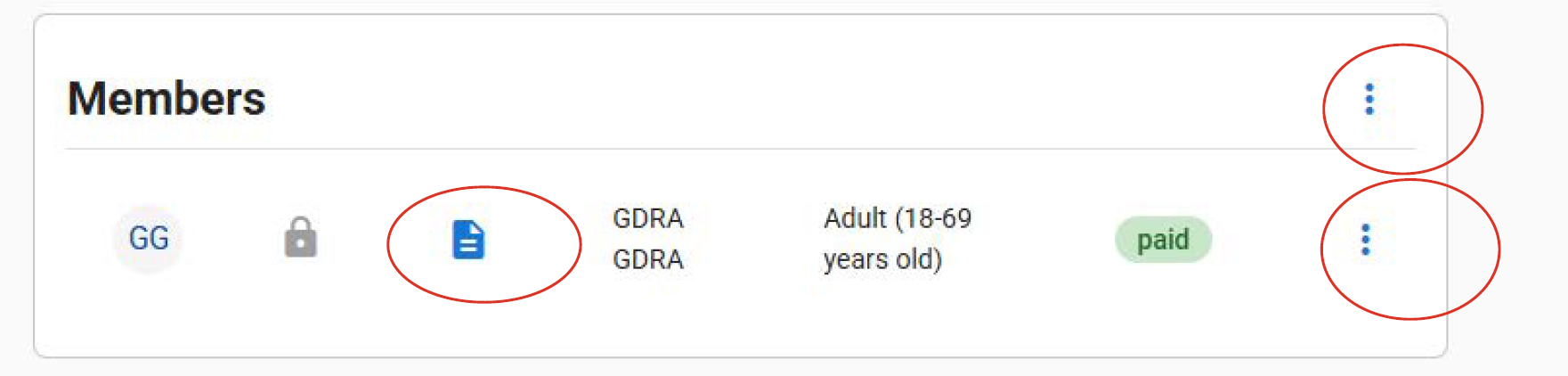
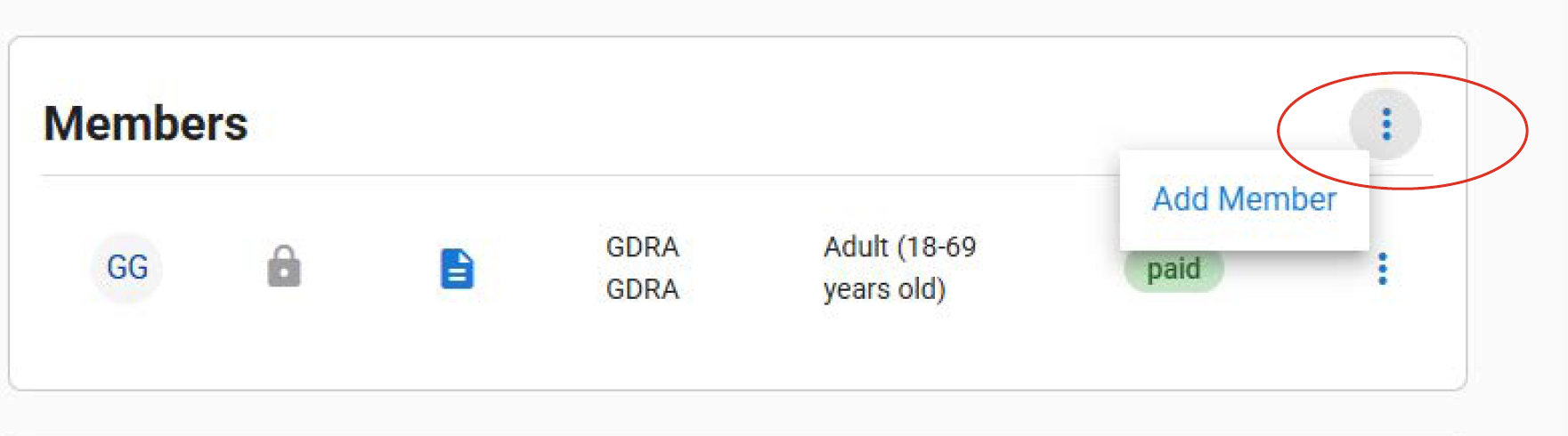
You can add Members through this menu:
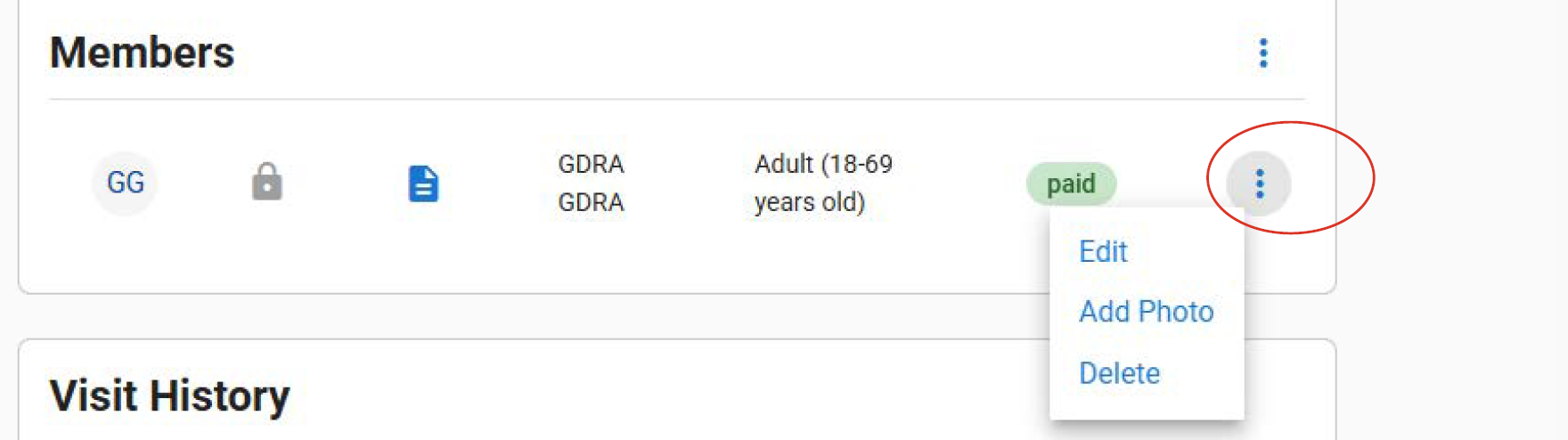
You can edit Members through this menu:
You can sign Liability Waivers for the Members through this menu: NOTE: ALL MEMBERS NEED TO HAVE A LIABILITY WAIVER SIGNED TO USE THE GDRA FACILITIES. If you have trouble, then you can also fill out the Liability Waiver through this LINK. Pool staff will check to make sure that all Members have signed the waiver before the Members enter the pool facilities.
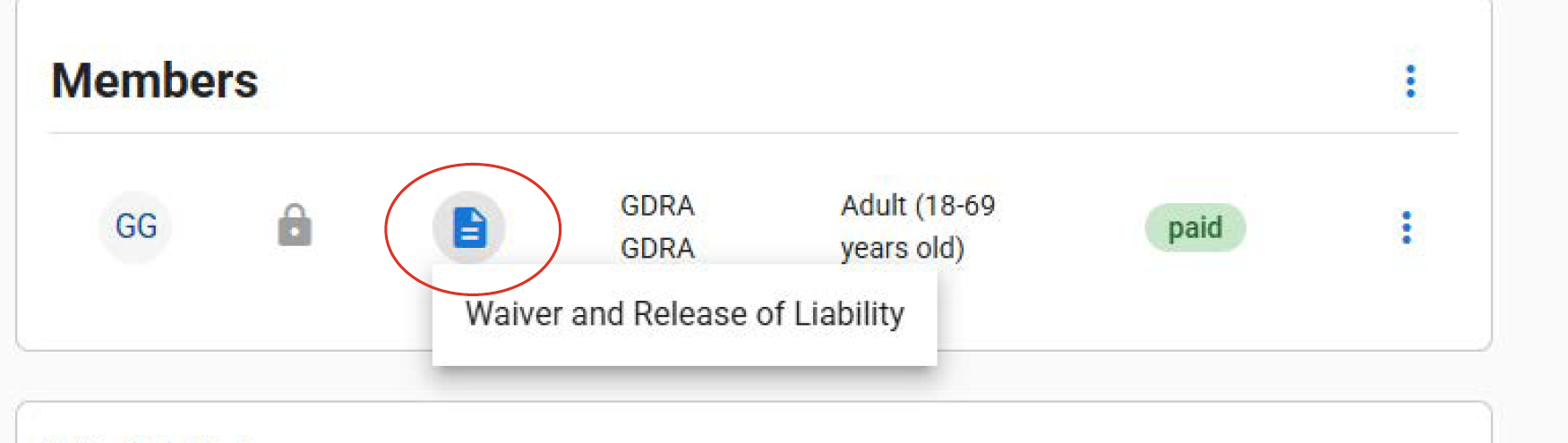
The fields to Add a Member look like this:
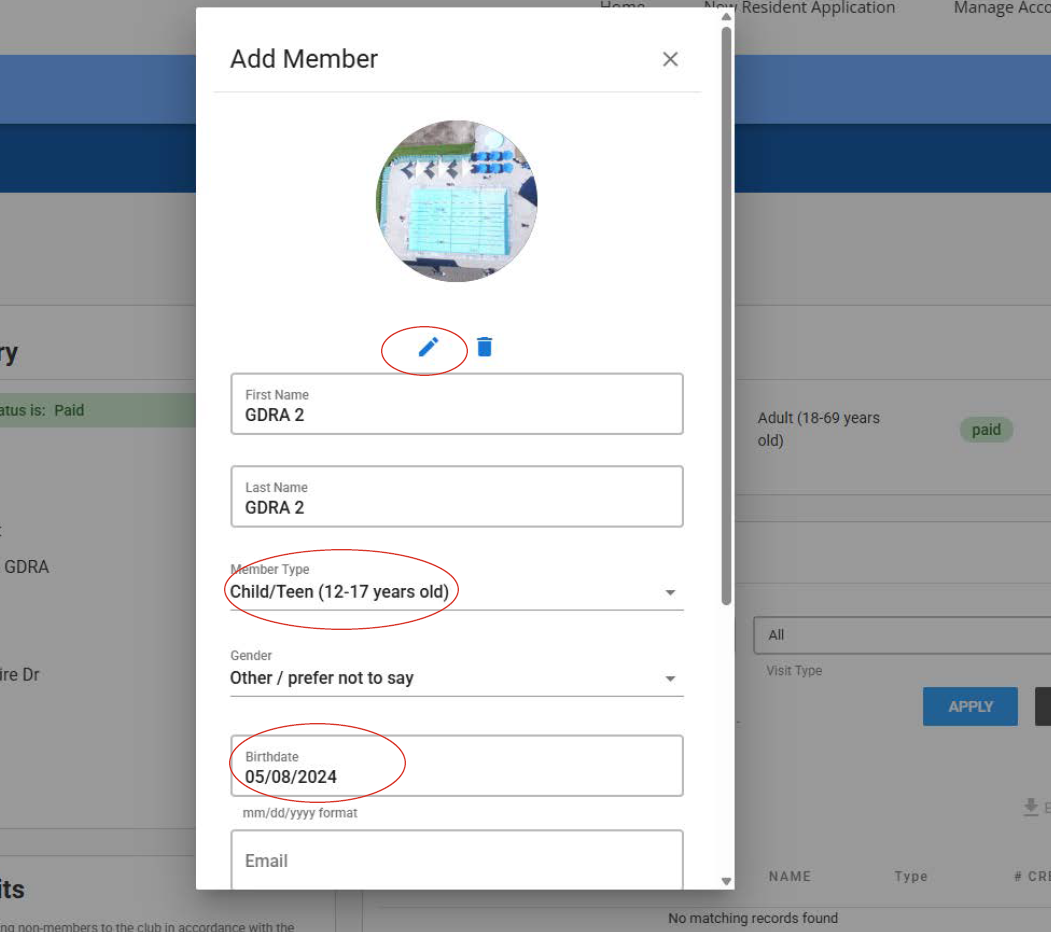
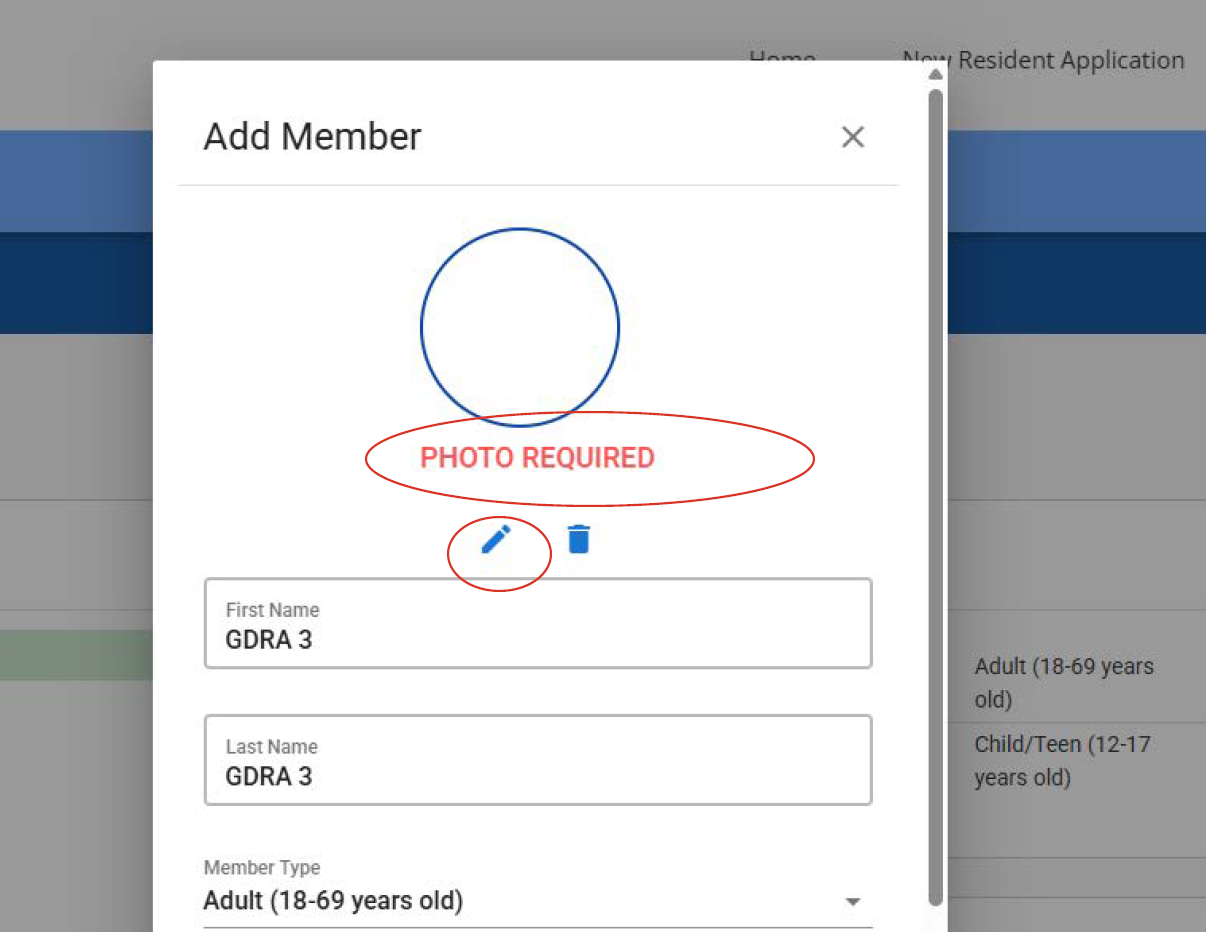
Make sure that you add a photo, include the correct Member Type, and include a birthday for all of your household members. The software will not let you move forward until you complete all those fields. They make it easier for the pool staff to check in Members.
You can add a photo through these buttons on the Add/Edit Member screens:

Once you have added all the required fields for your household members, the main account page will change to look like this. The Account Requirements will be gone.
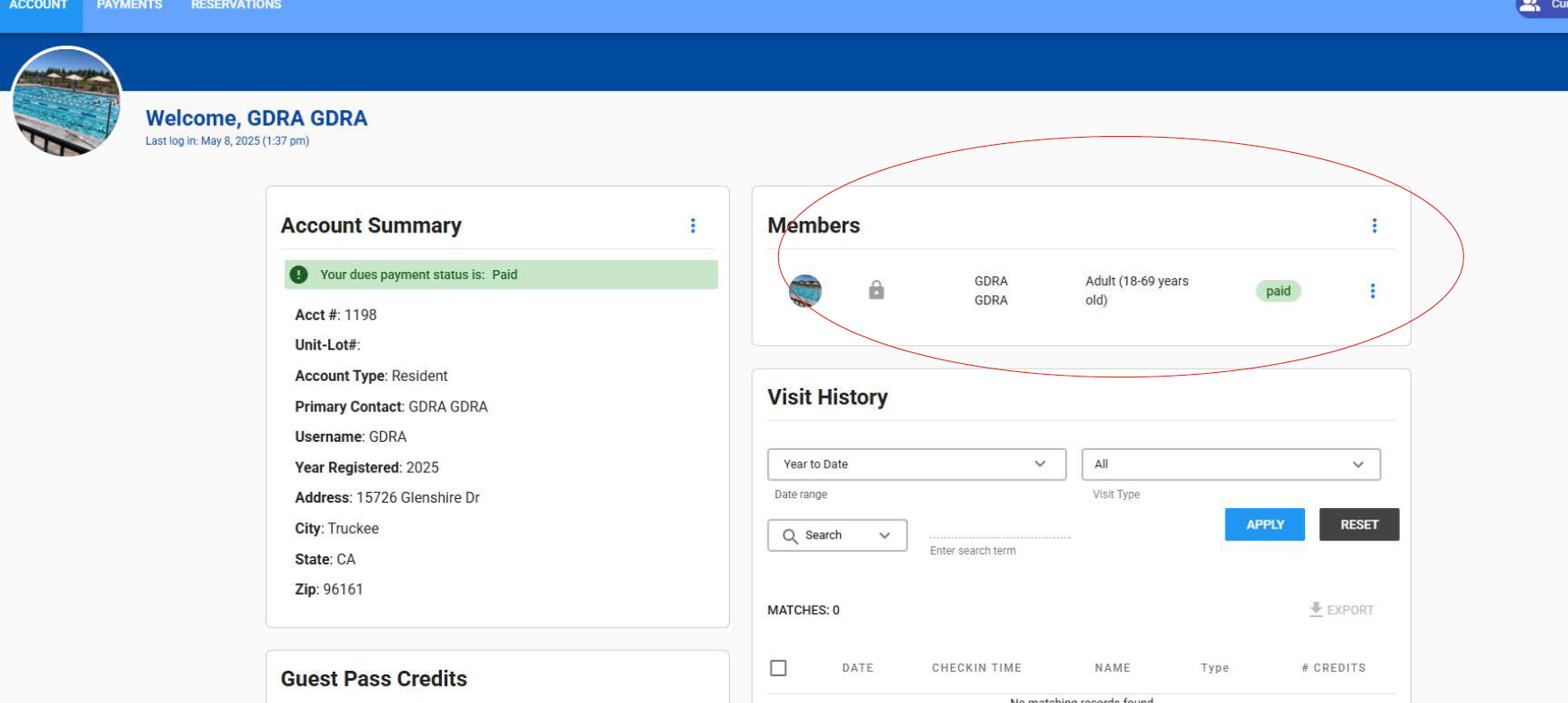
Now you can go to the Payments tab of your account and select what type of pool passes you would like to purchase, if any.
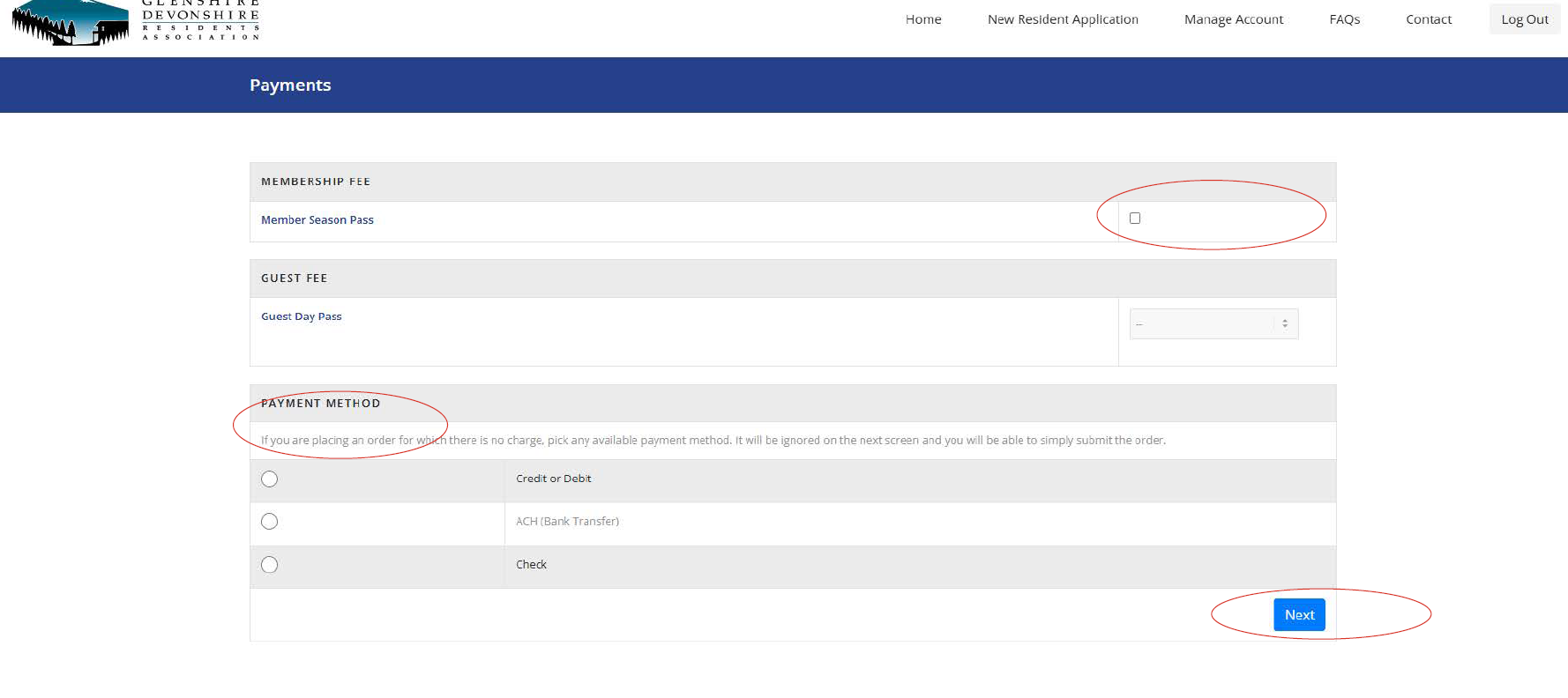
Have fun setting up your account! Please feel free to reach out to the pool staff by phone or email if you need help setting up your account. We are happy to help!